Auto-Policy Remediation Enhancements for the ESA in vSAN 8 U2Auto-Policy Remediation

Auto-Policy Remediation Enhancements for the ESA in vSAN 8 U2

vSAN 8 U1 introduced a new Auto-Policy Management feature that helps administrators run their ESA clusters with the optimal level of resilience and efficiency. This helps takes the guesswork and documentation consultation after deploying or expanding a cluster on what is the most optimal policy configuration. In vSAN 8 U2, we’ve made this feature even more capable.
Background

Data housed in a vSAN datastore is always stored in accordance with an assigned storage policy, which prescribes a level of data resilience and other settings. The assigned storage policy could be manually created, or a default storage policy created by vSAN. Past versions of vSAN used a single “vSAN Default Storage Policy” stored on the managing vCenter Server to serve as the policy to use if another policy wasn’t defined and applied by an administrator. Since this single policy was set as the default policy for all vSAN clusters managed by the vCenter Server, it used settings such as a failures to tolerate of 1 (FTT=1) using simple RAID-1 mirroring to be as compatible as possible with the size and the capabilities of the cluster.This meant that the default storage policy wasn’t always optimally configured for a given cluster. The types, sizes, and other characteristics of a cluster might be very different. Changing a policy rule optimized for one cluster may not be ideal, or even compatible with another cluster. We wanted to address this, especially since the ESA eliminates compromises in performance between RAID-1 and RAID-5/6.

Auto-Policy Management for ESA

Configuration of the policy is covered in the 8U1 feature blog here. Once configured, this will automatically create the relevant SPBM policy for the cluster.


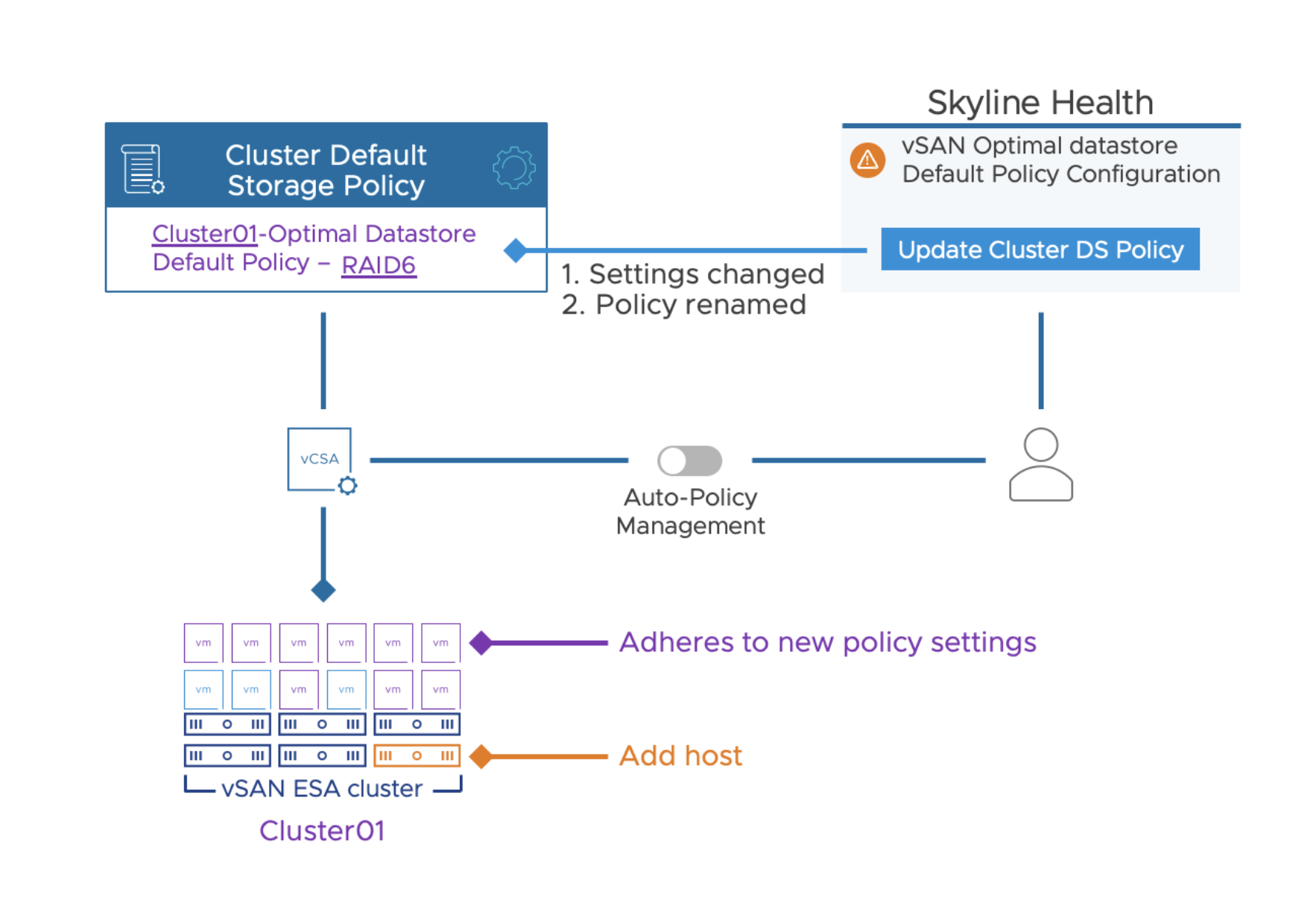
Upon the addition or removal of a host from a cluster, the Auto-Policy Management feature will evaluate if the optimized default storage policy needs to be adjusted. If vSAN identifies the need to change the optimized default storage policy, it does so by providing a simple button in the triggered health finding to change the affected storage policy, at which time it will reconfigure the cluster-specific default storage policy with the new optimized policy settings. It will also rename the policy to reflect the newly suggested settings. This guided approach is intuitive, and simple for administrators to know their VM storage policies are optimally configured for their cluster. This change specifically addresses improved behavior for ongoing adjustments in the cluster. Upon a change to the cluster size, Instead of creating a new policy (as it did in vSAN 8 U1), the Auto-Policy Management feature will change the existing, cluster specific storage policy.

Upon a reconfiguration of the Auto-Policy generated storage policy, the automatically generated name will also be adjusted. For example, in a 5-host standard vSAN cluster without host rebuild reserve enabled, the auto-policy management feature will create a RAID-5 storage policy, and use the name of: “cluster-name – Optimal Datastore Default Policy – RAID5”
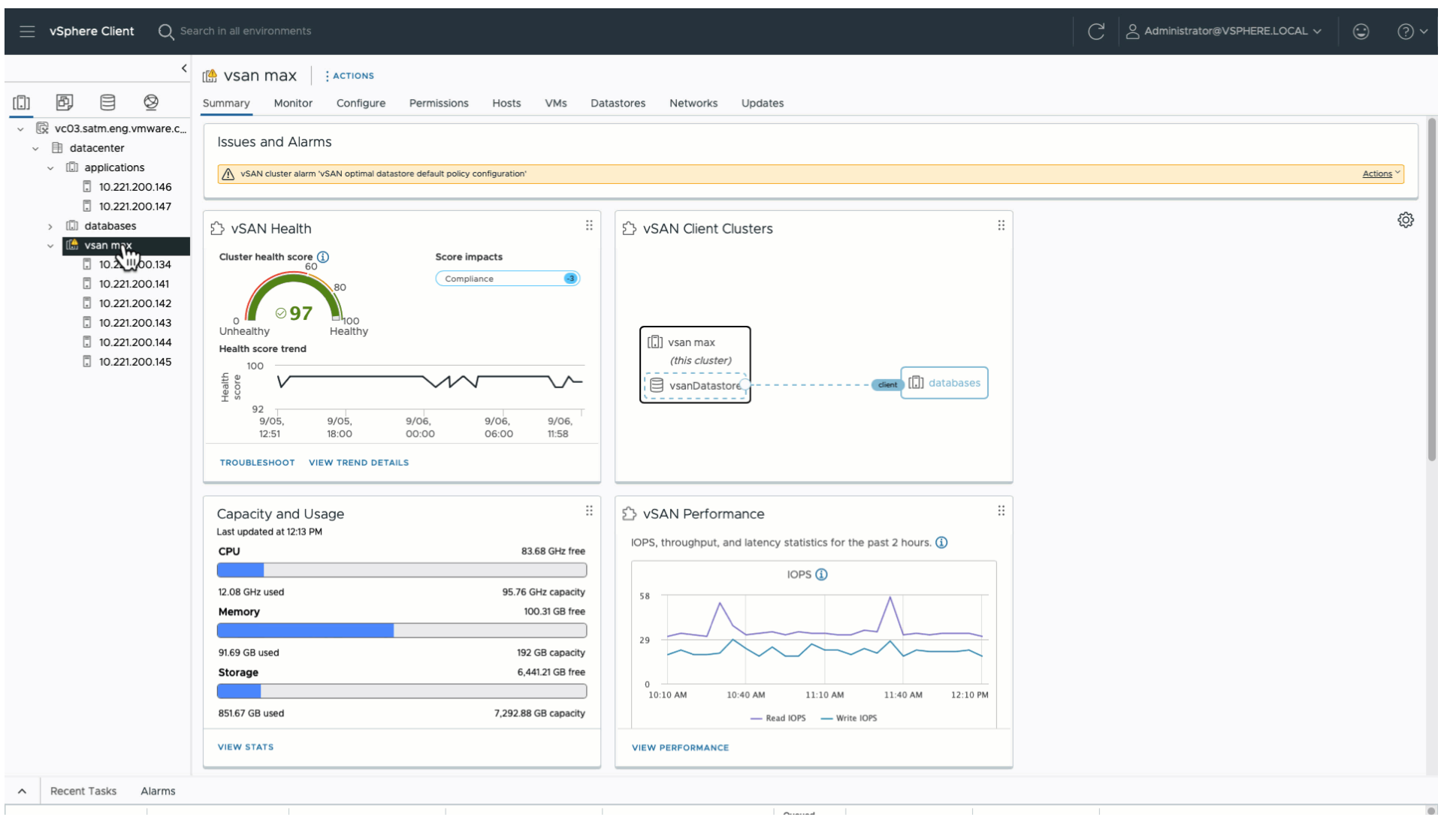


If an additional host is added to the cluster, after a 24 hour period, the following events will occur:

The Administrator will be prompted with an optional button “Update Cluster DS Policy.”

This will trigger two events The existing policy is changed to RAID-6 The existing policy’s name is changed to “cluster-name – Optimal Datastore Default Policy – RAID6

As described in the steps above, vSAN 8 U2 still does not automatically change the policy without their knowledge. The difference with vSAN 8 U2 is that upon a change of a host count in a cluster, we not only suggest the change, but upon an administrator manually click on the button “Update Cluster DS Policy” we will make this adjustment for them. A host in maintenance mode does not impact this health finding. The number of hosts in a cluster are defined by those that have been joined in the cluster


Configuration Logic for Optimized Storage Policy for Cluster

The policy settings the optimized storage policy uses are based on the type of cluster, the number of hosts in a cluster, and if the Host Rebuild Reserve (HRR) capacity management feature is enabled on the cluster. A change to any one of the three will result in vSAN making a suggested adjustment to the cluster-specific, optimized storage policy. Note that the Auto-Policy Management feature is currently not supported when using the vSAN Fault Domains feature.

Standard vSAN clusters (with Host Rebuild Reserve turned off):

  • 3 hosts without HRR : FTT=1 using RAID-1
  • 4 hosts without HRR: FTT=1 using RAID-5 (2+1)
  • 5 hosts without HRR: FTT=1 using RAID-5 (2+1)
  • 6 or more hosts without HRR: FTT=2 using RAID-6 (4+2)

    Standard vSAN clusters (with Host Rebuild Reserve enabled)
  • 3 hosts with HRR: (HRR not supported with 3 hosts)
  • 4 hosts with HRR: FTT=1 using RAID-1
  • 5 hosts with HRR: FTT=1 using RAID-5 (2+1)
  • 6 hosts with HRR: FTT=1 using RAID-5 (4+1)
  • 7 or more hosts with HRR: FTT=2 using RAID-6 (4+2)

vSAN Stretched clusters

  • 3 data hosts at each site: Site level mirroring with FTT=1 using RAID-1 mirroring for a secondary level of resilience
  • 4 hosts at each site: Site level mirroring with FTT=1 using RAID-5 (2+1) for secondary level of resilience.
  • 5 hosts at each site: Site level mirroring with FTT=1 using RAID-5 (2+1) for secondary level of resilience.
  • 6 or more hosts at each site: Site level mirroring with FTT=2 using RAID-6 (4+2) for a secondary level of resilience.

vSAN 2-Node clusters:

2 data hosts: Host level mirroring using RAID-1

Summary

The new improved Auto-Policy Management feature in vSAN 8 U2 serves as a building block to make vSAN ESA clusters even more intelligent, and easier to use. It gives our customers confidence that resilience settings for their environment are optimally configured.
What should I be paying for NVMe drives for ESA VSAN? (October 2024)

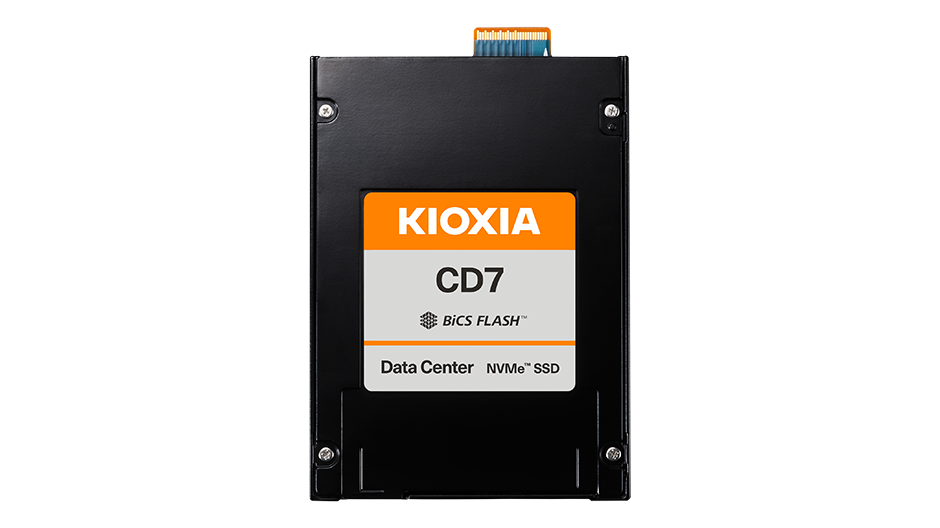
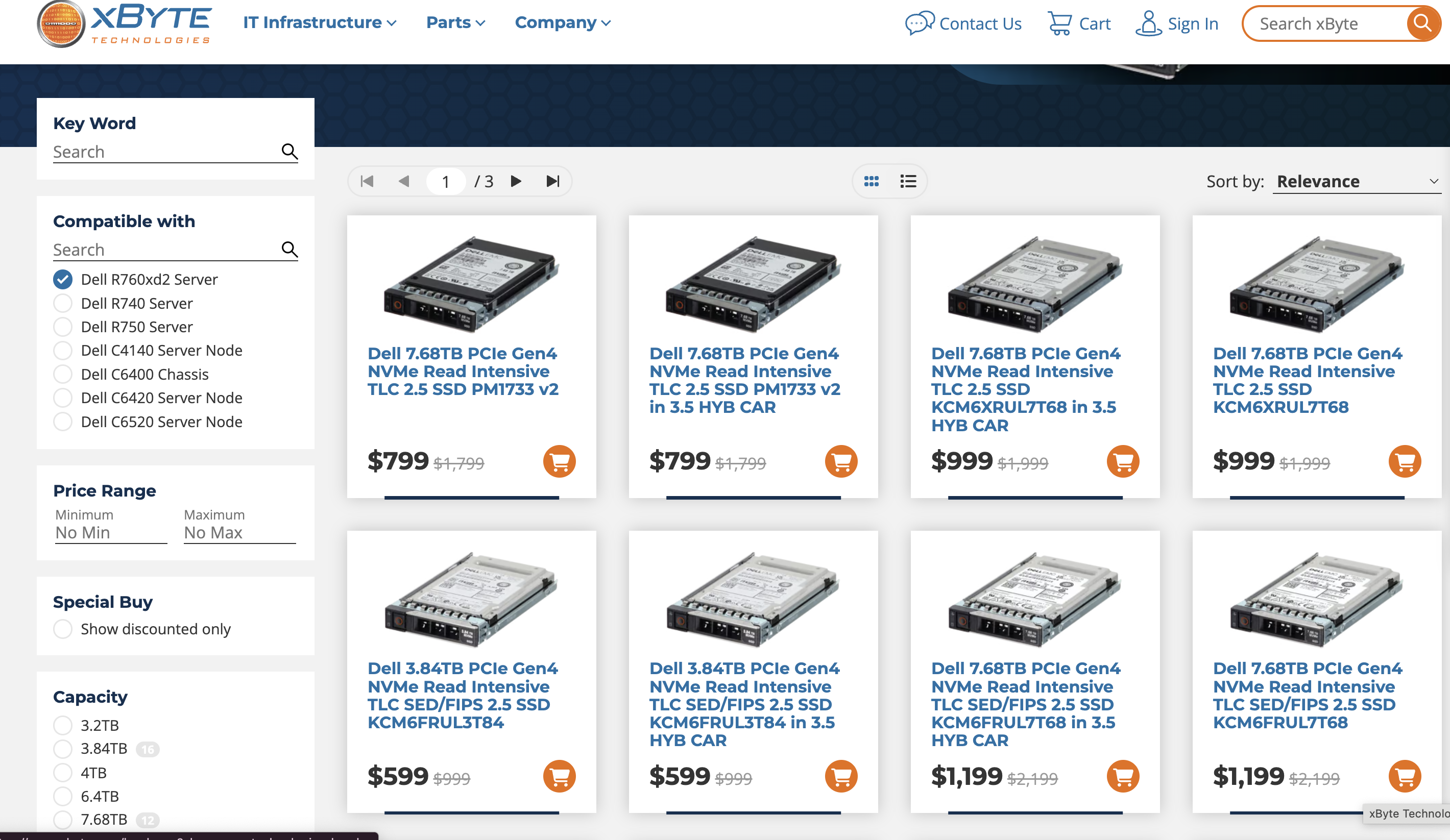
It’s come to my attention that a lot of people shopping storage really don’t know what to expect for NVMe server drives. Also looking at some quotes recently I can say some of you are getting great prices, and some of you are getting…. Well a quote…

I’m seeing discounted prices in the 12 cents (Read Intensive, Datacenter Class drives) to closer to 30 cents (Mixed use, fancier Enterprsie class drives) depending on volume and order. I’m also seeing some outliers (OEMs charging 60 cents per GB?!?!). Seeing better/worse pricing? message me on twitter @Lost_Signal.

I did look around the ecosystem and see one seller closing in on 10 cents per GB for one of the Samsung drives in an OEM caddy.


While DRAM and other component costs matter, vSAN Storage only clusters with dense nodes (200-300TiBs of NVMe) will typically see over 80% of the hardware BOM be the NVMe drives. This is driving a lot of focus on drive pricing and some awkward questions with server sales/accounting teams trying to explain charging 4-5x the going rate for drives.

So why is there such a difference in drive prices?

Drive Types


First off there’s a number of critera that can influence the price of a drive:

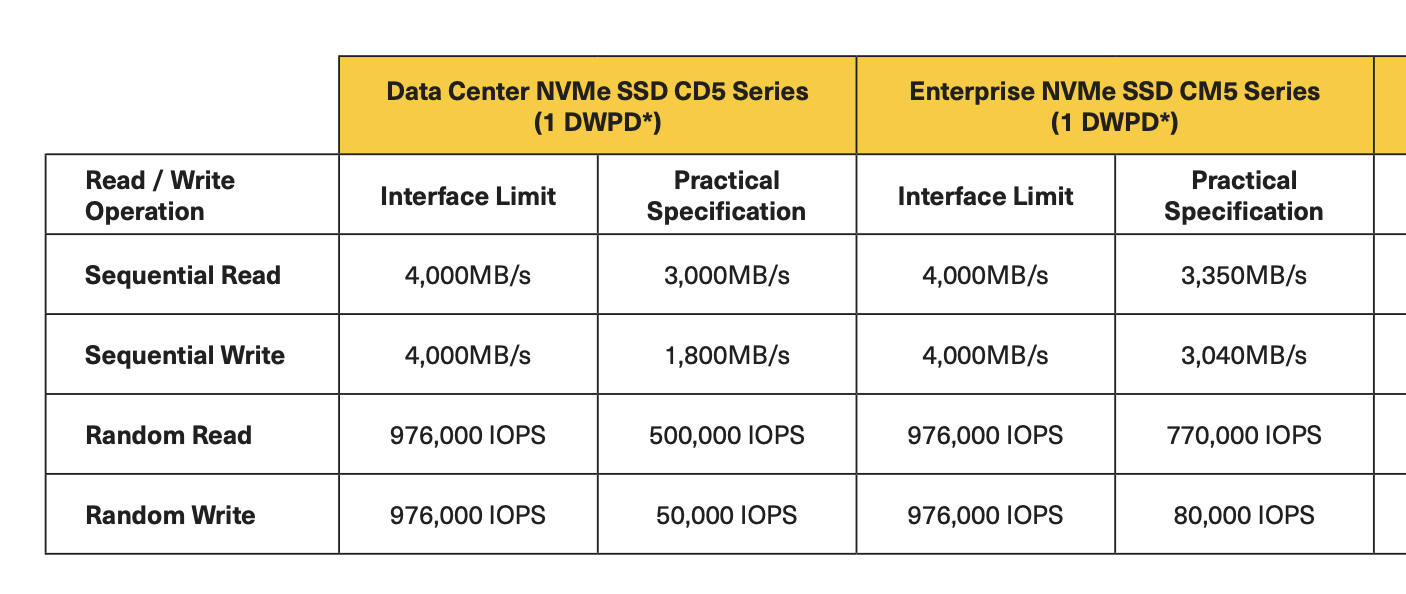
  1. What’s the endurance? Mixed-Use (3 drive write per day) drives are what vSAN ESA started with, but it is worth noting they cost more. How much more? ~20% more than Read Intensive drives that only support 1 DWPD. Do I need Mixed use? In short most of you do not, but you should check your change rate, or write rate. Very high throughput data warehouses doing tons of ETLs or large automation farms may see the need to pay the fancier drive that will last longer, and likely have better high end write throughput. I would expect 90% of clusters can use Read Intensive drives though at this point.
  2. Enterprise or Datacenter class TLC drives – Much like “value SAS” before a cheaper slightly less featured (single port vs. 2 port which does NOT matter inside a server), slightly less performant class of NVMe drive is showing up on quotes. I’m so far a fan, for anything but ultra high write throughput workloads it should save you some money. It’s positioned well to replace SATA. and furthers the argument that vSAN OSA is a legacy platform, and ESA should be all new builds. Speaking to one vendor recently they were skeptical of the need for QLC NAND when the cheaper “Datacenter class” TLC can hit pretty solid price points without some of the performance and endurance limits that QLC currently faces (To be fair, we all said the same thing about SLC, and MLC and TLC before, so in the long run I”m sure we will end up on QLC and PLC eventually).
  3. SAS/SATA are not supported by vSAN ESA, but frankly I’m seeing prices at the same or frankly worse for similarish SAS drives. I don’t expect SAS/SATA to show up in the datacenter much going forward beyond maybe M.2 boot devices.

Price List and Discounting

  1. Price list price. Note there are two factors at play here. A vendor will have a list price that is HIGHLY inflated (think 10-12x the component cost to them or even a normal person purchasing that device). These price lists are not consistent vendor to vendor. Price lists are not always universal, they might be per country, by quarter, by contract vehicle and by company. Negotiated price lists can do some weird things. vehicles that are not updated quarterly effectively mean you have committed to worse prices over time (As market prices go down). Also older price lists will not include newer drives or SKUs that are cheaper, sometimes forcing customers to purchase older servers/drives etc at higher cost.
  2. Discount % – When I ask people what they pay for drives or servers they often reply with a discount percent, with a slight bit of excitement and zero context. This is a bit like me telling people I paid 30% off for an air filter yesterday. (30% of WHAT?) Discussing discount without knowing the price list markup is a bit like buying a car without knowing what currency you are negotiating in. Different OEMs have different blends of markup, and base discounts. One Tier 1 vendor OEM’s example of expected discounts are:

    55% – Anyone with a pulse should get this discount.
    65% – If you found a partner and they felt like making 20% off of you, this is your normal pricing for a small order from a small company.
    75% – A reasonable normal discount
    85% – A large order, or an order from a large company who does a lot of purchasing.
    90%+ You bought a railcar sized order.

    Some factors that can influence discount size:


    Note Tier 2/3 OEMs tend to have much more “Street ready pricing” by default.

Some factors that can influence discount size

  • Size of deal – Larger orders can discount more.
  • Financial Shenanigans – Some server vendors are currently trying to operate as a SaaS companies in their financial reporting to wallstreet. As part of this cosplaying as a subscription service, they will only quote sane discounts/prices if you structure the deal as a subscription deal. They may require this have a cloud connected component that in reality has no real value, but I assure you is required by auditors to comply with ASC 606 accounting regulations and totally isn’t dubiously stretching the line at the unique value requirements of the cloud bits. If you do not want a quote that costs 3x what it should, and would like servers delivered this year instead of 2026, I suggest you roll your eyes, and ask for that new cloud thing!.
  • Competitive pressure – Competitive deals (meaning there is another vendor quoting servers or drives) typically unlocks 10-30% better pricing for the sales team. If you NEVER quote anyone else (even as a benchmark) you will discover your pricing power even at scale slowly atrophies over time. Seriously, go invite Lenovo, or Hitachi, Fujitsu or some other vendor to throw a quote at the wall. Even if you likely plan to stick with your existing OEM, you will find this helps keep pricing a bit more honest.

Vendor doesn’t want to sell you the drives (because they want to sell something else!)– This one is weird, but if you are asking a VAR/Server vendor who also sells storage to quote you NVMe drives for vSAN… They may have a perverse incentive to mis-price them so they can sell you a higher margin external storage array. Server components (especially to partners, I used to work for one!) tend to offer less margin, and vendor sales reps may have quota buckets they need to fill in storage. This reminds me of the wise words of Eric.

Common factors for higher prices

“The customer gets ONE of the votes on what they get to buy” – Enterprise Storage sales rep who I saw make 700K in commission.

You specified a very specific drive they don’t have in stock – Vendors have gotten increasingly annoyed with being forced to stock like for like parts for replacement, and supply chain management of 40 different NVMe drive SKUs (performance, encryption, endurance, capacity variables) has allowed their supply chain guys to offer discounts for “Agnostic SKUs” (where you get something that meets the spec). While I am partial to some specific drive SKUs this can cost you anywhere from 20% to 100% as well as delays in shipping. By discounting drives they have to sell and want to sell they can make sure the server gets sold in THIS quarter so they can book revenue now.

Sandbagging, SPIFFS and other odd sales behaviors – People who sell most of the time want to help the customer solve a problem. That said they also are driven by a long list of various incentives to sell specific things at specific times. This is referred to as “Coin-Operated” behavior. Sandbagging is a term used when a sales team purposely slows down a deal. This could be because they have hit a ceiling on how much commission they can earn, or accelerators to their commission. SPIFFs are one off payments for selling specific things, often paid not by the sales teams employer but a manufacturer or partner directly. It frankly always felt strange to have a storage vendor trying to pay me in Visa Gift cards on the side (I generally refused these, as it felt like a illicit transaction) but it does happen.

#vSAN #ESA #NVMe #TCO #Price

is HPE Tri-Mode Supported for ESA?

No.

Now, the real details are a bit more complicated than that. It’s possible to use the 8SFF 4x U.3 TriMode (not x1) backplane kit, but only if the server was built out with only NVMe drives, and no RAID controller/Smart Array. Personally I’d build of of E.3 drives. For a full BOM review and a bit more detail check out this twitter thread on the topic where I go step by step through the BOM outlining what’s on it, why and what’s missing.

How to configure a fast end to end NVMe I/O path for vSAN

A quick blog post as this came up recently. Someone who was looking t NVMoF with their storage was asking how do they configure a similar end to end vSAN NVMe I/O path that avoids SCSI or serial I/O queues.

Why would you want this? NVMe in general uses significantly less CPU per IOP compared to SCSI, has simpler hardware requirements commonly (no HBA needed), and can deliver higher throughput and IOPS at lower latency using parallel queuing.

This is simple:

  1. Start with vSAN certified NVMe drives.
  2. Use vSAN ESA instead of OSA (It was designed for NVMe and parralel queues in mind, with additional threading at the DOM layer etc).
  3. Start with 25Gbps ethernet, but consider 50 or 100Gbps if performance is your top concern.
  4. Configure the vNVMe adapter instead of the vSCSI or LSI Buslogic etc. controllers.
  5. (Optional) – Want to shed the bonds of TCP and lower networking overhead? Consider configuring vSAN RDMA (RCoE). This does require some specific configuration to implement, and is not required but for customers pushing the limits of 100Gbps in throughput this is something to consider.
  6. Deploy the newest vSAN version. The vSAN I/O path has seen a number of improvements even since 8.0GA that make it important to upgrade to maximize performance.

To get started adda. NVMe Controller to your virtual machines, and make sure VMtools is installed in the guest OS of your templates.

Note you can Migrate existing VMDKs to vNVMe (I recommend doing this with the VM powered off). Also before you do this you will want to install VMtools (So you have the VMware paravirtual NVMe controller driver installed).

How to rebuild a VCF/vSAN cluster with multiple corrupt boot devices

Note: this is the first part of a series.

In my lab, I recently had an issue where a large number of hosts needed to be rebuilt. Why did they need to be rebuilt? If you’ve followed this blog for a while, you’ve seen the issues I’ve run into with SD cards being less than reliable boot devices.

Why didn’t I move to M.2 based boot devices? Unfortunately, these are rather old hosts and unlike modern hosts, there is not an option for something nice like a BOSS device. This is also an internal lab cluster used by the technical marketing group, so while important, it isn’t necessary “mission critical” by any means.

As a result of this, and a power hiccup I ended up with 3 hosts offline that could not restart. Given that many of my VM’s were set to only FTT=1 this means complete and total data loss right?

Wrong!

First off, the data was still safe on the disk groups of the 3 offline hosts. Once I can get the hosts back online the missing components will be detected and the objects will become healthy again (yah, data loss!). vSAN does not keep the metadata or data structures for the internal files systems and object layout on the boot devices. We do not use the boot device as a “Vault” (if your familiar with the old storage array term). If needed all of the drives in a dead host can be moved to a physically new host and recovery would be similar to the method I used of reinstalling the Hypervisor on each host.

What’s the damage look like?

Hopping into my out of band management (My datacenter is thousands of miles away) I discovered that 2 of the hosts could not detect their boot devices, and the 3rd failed to fully reboot after multiple attempts. I initially tried reinstalling ESXi on the existing devices to lifeboat them but this failed. As I noted in a previous blog, SD cards don’t always fully fail.

Live view of the SD cards that will soon be thrown into a Volcano

If vSAN was only configured to tolerate a single failure, wouldn’t all of the data at least be inaccessible with 3 hosts offline? It turns out this isn’t the case for a few reasons.

  1. vSAN does not by default stripe data wide to every single capacity device in the cluster. Instead, it chunks data out into fresh components every 255GB (Note you are welcome to set strip width higher and force more sub-components being split out of objects if you need to).
  2. Our cluster was large. 16 hosts and 104 physical Disks (8 disks in 2 disk groups per host).
  3. Most VM’s are relatively small, so out of the 104 physical disks in the cluster, having 24 of them offline (8 per host in my case). still means that the odds of those 24 drives hosting 2 of the 3 components needed for a quorum is actually quite low.
  4. A few of the more critical VM’s were moved to FTT=2 (vCenter, DNS/NTP servers) making their odds even better.

Even in the case of a few VM’s that were impacted (A domain Controller, some front end web servers), we were further lucky by the fact that these were redundant virtual machines already. Given both of the VMs providing these services didn’t fail, it became clear with the compounding ods in our favor that for a service to go offline was more in the odds of rolling boxcars twice, than a 100% guarantee.

This is actually something I blogged about quite a while ago. It’s worth noting that this was just an availability issue. In most cases of actual true device failure for a drive, there would normally be enough time between loss to allow for repair (and not 3 hosts at once) making my lab example quite extreme.

Lessons Learned and other takeaways:

  1. Raise a few Small but important VM’s to a higher FTT level if you have enough hosts. Especially core management VMs.
  2. vSAN clusters can become MORE resilient to loss of availability the larger they are, even keeping the same FTT level.
  3. Use higher quality boot devices. M.2 32GB and above with “real endurance” are vastly superior to smaller SD cards and USB based boot devices.
  4. Consider splitting HA service VM’s across clusters (IE 1 Domain Controller in one of our smaller secondary clusters).
  5. For Mission-Critical deployments use of a management workload domain when using VMware Cloud Foundation, can help ensure the management is fully isolated from production workloads. Look at stretched clustering, and fault domains to take availability up to 11.
  6. Patch and reboot your hosts often. Silently corrupt embedded boot devices may be lurking in your USB/SD powered hosts. You might not know it until someone trips a breaker and suddenly you need to power back on 10 hosts with dead SD devices. Regular patching will catch this one host at a time.
  7. While vSAN is incredibly resilient always have BC/DR plans. Admins make mistakes and delete the wrong VMs. Datacenters are taken down by “Fire/Flood/Blood” all the time.

I’d like to thank Myles Grey and Teodora Todorova Hristov for helping me make sense of what happened and getting the action plan to put this back together and grinding through it.

Understanding File System Architectures.

File System Taxonomy

I’ve noticed that Clustered File Systems, Global file systems, parallel file systems and distributed file systems are commonly confused and conflated. To explain VMware vSAN™ Virtual Distributed File System™ (VDFS) I wanted to highlight some things that it is not. I’ll be largely pulling my definitions from Wikipedia but I look forward to hearing your disagreements on twitter. It is work noting some file systems can have elements that cross the taxonomy of file system layers for various reasons. In some cases, some of these definitions are subcategories of others. In other cases, some file systems (GPFS as an example) can operate in different modes (providing RAID and data protection, or simply inherent it from a backing disk array).

Clustered File System

A clustered file system is a file system that is shared by being simultaneously mounted on multiple servers. Note, there are other methods of clustering applications and data that do not involve using a clustered file system.

Parallel file systems

Parallel file systems are a type of clustered file system that spread data across multiple storage nodes, usually for redundancy or performance. While the vSAN layer mirrors some characteristics (Distributed RAID and striping) it does not 100% match with being a parallel file system.

Examples would include OneFS and GlusterFS.

shared-disk file system

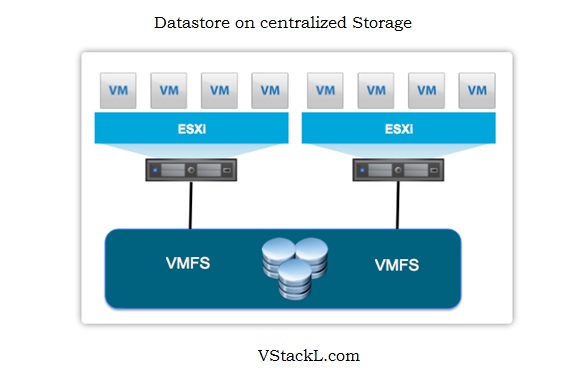
shared disk file systems are a clustered file system but are not a parallel file system. VMFS is a shared disk file system. The most common form of a clustered file system that leverages a storage area network (SAN) for shared access of the underlying LBAs. Clients are forced to handle the translation of file calls, and access control as the underlying shared disk array has no awareness of the actual file system itself. Concurrency control prevents corruption. Ever mounted NTFS to 2 different windows boxes and wondered why it corrupted the file system? NTFS is not a shared disk file system and the different operating systems instances do not independently by default know how to cleanly share the partition when they both try to mount it. In the case of VMFS, each host can mount a given volume as read and write, while cleanly making sure that access to specific subgroups of LBA’s used for different VMDKs (or even shared VMDKs) is properly handled with no data corruption. This is commonly done over a storage area network (SAN) presenting LUNs (SCSI) or namespaces (NVMe over fabrics). protocol to share this is block-based and can range from Fibre Channel, iSCSI, FCoE, FCoTR, SAS, Infiniband etc.

Example of 2 hosts mounting a group of LUNs and using VMFS to host VMs

Examples would include: GFS2, VMFS, Apple xSAN (storenext).

Distributed file systems

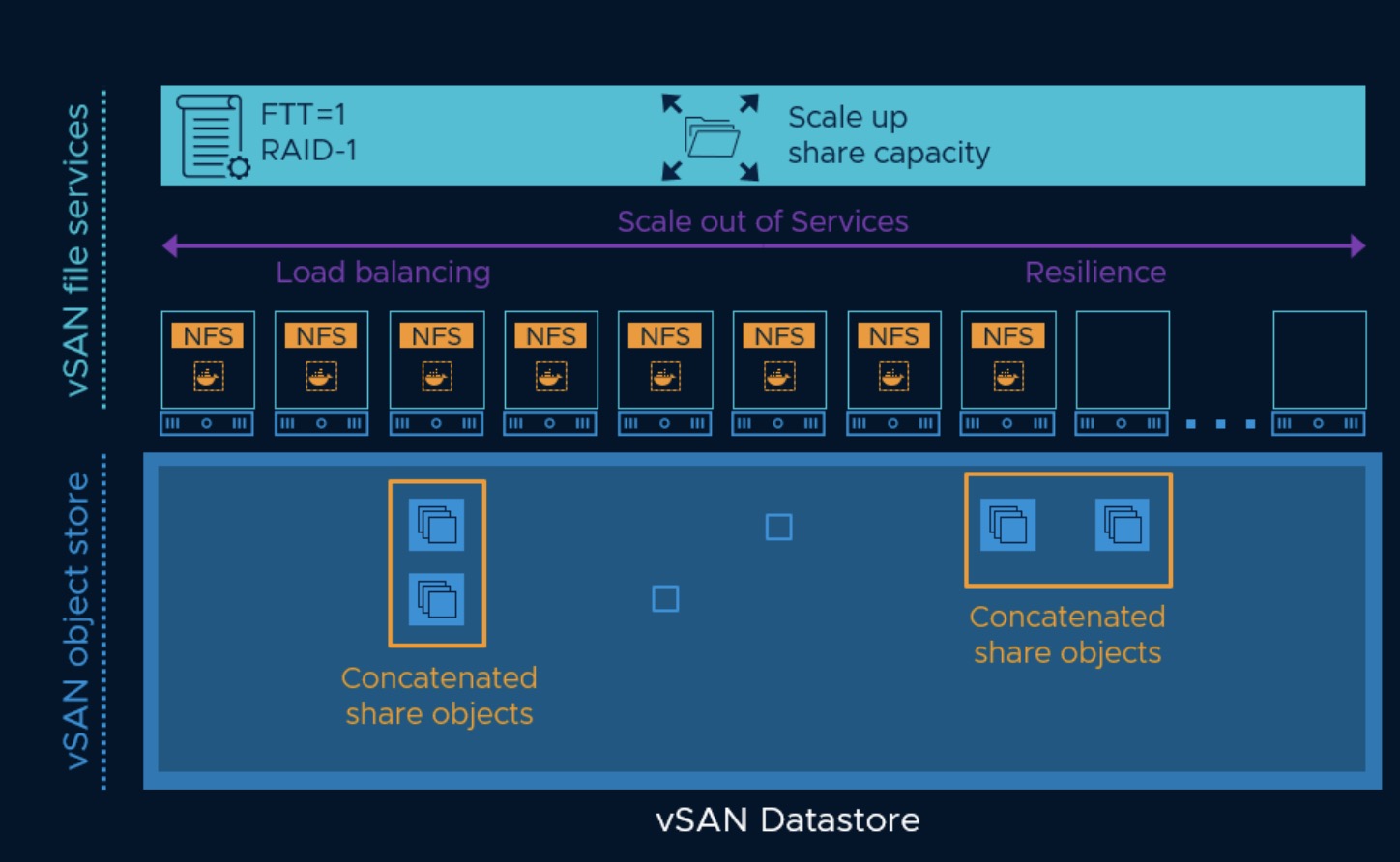
Distributed file systems do not share block-level access to the same storage but use a network protocol to redirect access to the backing file server exposing the share within the namespace used. In this way, the client does not need to know the specific IP address of the backing file server, as it will request it when it makes the initial request and within the protocol (NFSv4 or SMB) be redirected. This is not exactly a new thing (DFS in Windows is a common example, but similar systems were layered on top of Novell based filers, proprietary filers etc). These redirects are important as they prevent the need to proxy IO from a single namespace server and allow the data path to flow directly from the client to the protocol endpoint that has active access to the file share. This is a bit “same same but different” to how iSCSI redirects allow connection to a target that was not specified in the client pathing, or ALUA pathing handles non-optimized paths in the block storage world. For how vSAN exposes this externally using NFS, Check out this blog, or take a look at this video:

The benefits of a distributed file system?

  1. Access Transparency. This allows back end physical data migrations/rebuilds to happen without the client needing to be aware and re-pointing at the new physical location. clients are unaware that files are distributed and can access them in the same way as local files are accessed.
  2. Transparent Scalability. Previously you would be limited to the networking throughput and resources of a single physical file server or host that hosted a file server virtual machine. With a distributed file system each new share can be distributed out onto a different physical server and cleanly allow you to scale throughput for front end access. In the case of VDFS, this scaling is done with containers that the shares are distributed across.
  3. Capacity and IO path efficiency – Layering a scale-out storage system on top of an existing scale-out storage system can create unwanted copies of data. VDFS uses vSAN SPBM policies on each share and integrates with vSAN to have it handle the data placement and resiliency. In addition layering, a scale-out parallel file system on top of a scale-out storage system leads to unnecessary network hops for the IO path.
  4. Concurrency transparency: all clients have the same view of the state of the file system. This means that if one process is modifying a file, any other processes on the same system or remote systems that are accessing the files will see the modifications in a coherent manner. This is distinctly different from how some global file systems operate.

It is worth noting that VDFS is a distributed file system that exists below the protocol supporting containers. A VDFS volume is mounted and presented to the container host using a secure direct hypervisor interface that bypasses TCP/IP and the vSCSI/VMDK IO paths you would traditionally use to mount a file system to virtual machine or container. I will explore more in the future. For now, Duncan Explains it a bit on this blog.

Examples include: VDFS, Mirosoft DFS, BlueArc Global Namespace

Global File System

Global File Systems are a form of a distributed file system where a distributed namespace provides transparent access to different systems that are potentially highly distributed (IE in completely different parts of the world). This is often accomplished using a blend of caching and the use of weak affinity. There are trade-offs in this approach as if the application layer is not understood by the client accessing the data you have to deal with manually resolving conflicting save attempts of the same file, or forcing one site to be “authoritative” slowing down non-primary site access. While various products in this space have existed they tend to be an intermediate step for an application-aware distributed collaboration platform (or centralizing data access using something like VDI). While async replication can be a part of a global file system, file replication systems like DFS-R would not technically qualify. Solutions like Dropbox/OneDrive have reduced the demand for this kind of solution.

Examples include: Hitachi HDI

Where do various VMware storage technologies fall within this?

VMFS – a Clustered file system, that specifically falls within the shared-disk file system. While powerful and one of the most deployed file systems in the enterprise datacenter, it was designed for use with larger files that are (With some exceptions) only accessed by a single host at a time. While support for higher numbers of files and smaller files has improved significantly over the years, general-purpose file shares are currently not a core design requirement for it.

vVols – Not a clustered file system. An abstraction layer for SAN volumes, or NFS shares. For block volumes (SAN) it leverages SUB-LUN units and directly mounts them to the hosts that need them.

VMFS-L – A non-clustered variant Used in vSAN prior to the 6.0 release. Also used for the ESXi installed volume. File system format is optimized for DAS. Optimization include aggressive caching with for the DAS use case, a stripped lockdown lock manager, and faster formats. You commonly see this used on boot devices today.

VDFS – vSAN Virtual Distributed File System. A Distributed file system that sits inside the hypervisor directly onto of vSAN objects providing the block back end. As a result, it can easily consume SPBM policies on a per-share basis. For anyone paying attention to the back end, you will notice that objects are automatically added and concatenated onto volumes when the maximum object size is reached (256GB). components behind these objects can be striped, or as a result of various reasons be automatically spanned and created across the cluster. It is currently exposed through protocol containers that export NFSv3 or NFSv4.1 as a part of vSAN file services. While VDFS does offer a namespace for NFSv4.1 one connections and handles redirection of share access, it does not currently globally redirect between disparate clusters, so it would not be considered a global file system.

Peanut Butter is Not Supported with vSphere/Storage Networking/vSAN/VCF

 From time to time I get oddball questions where someone asks about how to do something that is not supported or a bad idea. I’ll often fire back a simple “No” and then we get into a discussion about why VMware does not have a KB for this specific corner case or situation. There are a host of reasons why this may or may not be documented but here is my monthly list of “No/That is a bad idea (TM)!”.

How do I use VMware Cloud Foundation (VCF) with a VSA/Virtual Machine that can not be vMotion’d to another host?

This one has come up quite a lot recently with some partners, and storage vendors who use VSA’s (A virtual machine that locally consumes storage to replicate it) incorrectly claiming this is supported. The issue is that SDDC Manager automates upgrade and patch management. In order to patch a host, all running virtual machines must be removed. This process is triggered when a host is placed into maintenance mode and DRS carefully vMotions VMs off of the host. If there is a virtual machine on the host that can not be powered off or moved, this will cause lifecycle to fail.

What about if I use the VSA’s external lifecycle management to patch ESXi?

The issue comes in, running multiple host patching systems is a “very bad idea” (TM). You’ll have issues with SDDC Manager not understanding the state of the hosts, but also coordination of non-ESXi elements (NSX perhaps using a VIB) would also be problematic. The only exception to using SDDC manager with external lifecycle tooling tools are select vendor LCM solutions that done customization and interop (Examples include VxRAIL Manager, the Redfish to HPE Synergy integration, and packaged VCF appliance solutions like UCP-RS and VxRACK SDDC). Note these solutions all use vSAN and avoid the VSA problem and have done the engineering work to make things play nice.

JAM also not supported!

Should I use a Nexus 2000K (or other low performing network switch) with vSAN?

While vSAN does not currently have a switch HCL (Watch this space!) I have written some guidance specifically about FEXs on this personal blog. The reality is there are politics to getting a KB written saying “not to use something”, and it would require cooperation from the switch vendors. If anyone at Cisco wants to work with me on a joint KB saying “don’t use a FEX for vSAN/HCI in 2019” please reach out to me! Before anyone accuses me of not liking Cisco, I’ll say I’m a big fan of the C36180YC-R (ultra deep buffers RAWR!), and have seen some amazing performance out of this switch recently when paired with Intel Optane.

Beyond the FEX, I’ve written some neutral switch guidance on buffers on our official blog. I do plan to merge this into the vSAN Networking Guide this quarter. 

I’d like to use RSPAN against the vDS and mirror all vSAN traffic, I’d like to run all vSAN traffic through a ASA Firewall or Palo Alto or IDS, Cisco ISR, I’d like to route vSAN traffic through a F5 or similar requests…

There’s a trend of security people wanting to inspect “all the things!”.  There are a lot of misconceptions about vSAN routing or flowing or going places.

Good Ideas! – There is some false assumptions you can’t do the following. While they may add complexity or not be supported on VCF or VxRAIL in certain configurations, they certainly are just fine with vSAN from a feasibility standpoint.

  1. Routing storage traffic is just fine. Modern enterprise switches can route OSPF/Static routes etc at wire-speed just fine all in the ASIC offloads. vSAN is supported over layer 3 (may need to configure static routes!) and this is a “Good idea” on stretched clusters so spanning tree issues don’t crash both datacenters!
  2. vSAN over VxLAN/VTEP in hardware is supported.
  3. VSAN over VLAN backed port groups on NSX-T is supported.

Bad Ideas!

Frank Escaros-Buechsel with VMware support once told someone “While we do not document that as not supported, it’s a bit like putting peanut butter in a server. Some things we assume are such bad idea’s no one would try them, and there is only so much time to document all bad ideas.

  1. Trying to mirror high throughput flows of storage or vMotion from a VDS is likely to cause performance problems. While I”m not sure of a specific support statement, i’m going to kindly ask you not to do this. If you want to know how much traffic is flowing and where, consider turning on SFLOW/JFLOW/NetFlow on the physical switches and monitoring from that point. vRNI can help quite a bit here!
  2. Sending iSCSI/NFS/FCoE/vSAN storage traffic to an IDS/Firewall/Load balancer. These devices do not know how to inspect this traffic (trust me, they are not designed to look at SCSI or NVMe packets!) so you’ll get zero security value out of this process. If you are looking for virus binaries, your better off using NSX guest introspection and regular antivirus software. Because of the volume, you will hit the wire-speed limits of these devices. Outside of path latency, you will quickly introduce drops and re-transmits and murder storage traffic performance. Outside of some old Niche inline FC encryption blades (that I think Netapp used to make), inline storage security devices are a bad idea. While there are some carrier-grade routers that can push 40+ Gbps of encryption (MLXe’s I vaguely remember did this) the costs are going to be enormous, and you’ll likely be better off just encrypting at the vSCSI layer using the VM Encryption VAIO filter. You’ll get better security that IPSEC/MACSEC without massive costs.

Did I get something wrong?

Is there an Exception?

Feel free to reach out and lets talk about why your environment is a snowflake from these general rules of things “not to do!”

VMworld 2018

Another year another VMworld. I’ve got a few sessions I will be presenting:


HCI1473BU The vSAN I/O Path Deconstructed: A Deep Dive into the Internals of vSAN
??? Mystery Session: 7/27 at 3:30PM
HCI1769BU We Got You Covered: Top Operational Tips from vSAN Support Insight
HCI3331BU Better Storage Utilization with Space Reclamation/UNMAP


The vSAN I/O Path Deconstructed is an interesting inside look at the IO path of vSAN and the reasoning behind it.

We Got You Covered: Top Operational Tips from vSAN Support Insight shows off the phone home capabilities of vSAN and can help address your questions about what and how this data is used. We are also going to discuss how you can leverage similar views of performance as GSS and engineering to identify how to get the most out of vSAN.

HCI3331BU is a session that has been years in the making for me. “Where did my space go” is a question I get often. We will explain where that missing PB of storage went and how to reclaim it. The savings from implementing UNMAP should be able to fund your next VMworld trip!

Lastly, I’ve got a mystery session that should be unveiled later. Follow me on Twitter @Lost_Signal, and I’ll talk about what it will be when the time comes.

Pete and I will be recording for the vSpeakingPodcast Podcast LIVE! At the HCI Zone (Found near the VMware booth). We’ve got some new guests as well as some favorites lined up.

vSAN Sizing and RVtools Tips

VMware has released a new vSAN sizing tool!

Some guidance for the tool has been included on how to use it are in the design and sizing guide on StorageHub.

A lot of partners like using RVtools (A great way to make a simple capture of an inventory, health, and configuration) as a means to collect storage capacity information, as well as a snapshot of compute allocations.

  • If you have a large number of powered off VM’s have a serious discussion if they will all be started or needed at any time. If not, consider excluding them from compute sizing.
  • Use the health tab and look for Zombie VM’s and see if these cold VM’s can be deleted or migrated out.
  • Look for open snapshots, and see if these need to be collapsed (which can save space).
  • Be aware of the difference in the two storage metrics (allocated vs. consumed MB). If you intend to keep using thin provisioning, you do not need to size for all of the allocated. In the video, this is a significant capacity difference.
  • If the existing solution has VM’s tied to storage demands (Storage management VMs, VSA’s) that will be deprecated by vSAN be sure to exclude them.
  • Have a serious discussion on if the vCPU to physical core ratio is “working” or if they see performance issues. I’ve seen both people be too conservative (1:1 in test dev) and too aggressive (20:1 for databases!). You can see the existing ratio’s on the host tab.
  • Pay attention to CPU generations. Vintage Xeon 5500 will be crushed clock for clock by new EPYC processors.
  • Realize you can change the CPU configuration (Cluster advanced options). Some people may want to optimize their CPU model for licensing (commonly 16 core for windows, or possibly lower core but higher clock for Oracle). You can change these assumptions.
  • Be sure to check out the health tab, and look through the host configs. Make sure NTP is set up on hosts! Use this as an opportunity to see if the existing environment is even healthy.

Have any more tips and tricks? Check out the comments section below!


Tango Eagle Bravo

*Coming to a vSAN support call near you*

“Sir, It looks like Tango Eagle Bravo is the problem”.


Why does this sound like something out of a Nickolas Cage movie? Let me explain.

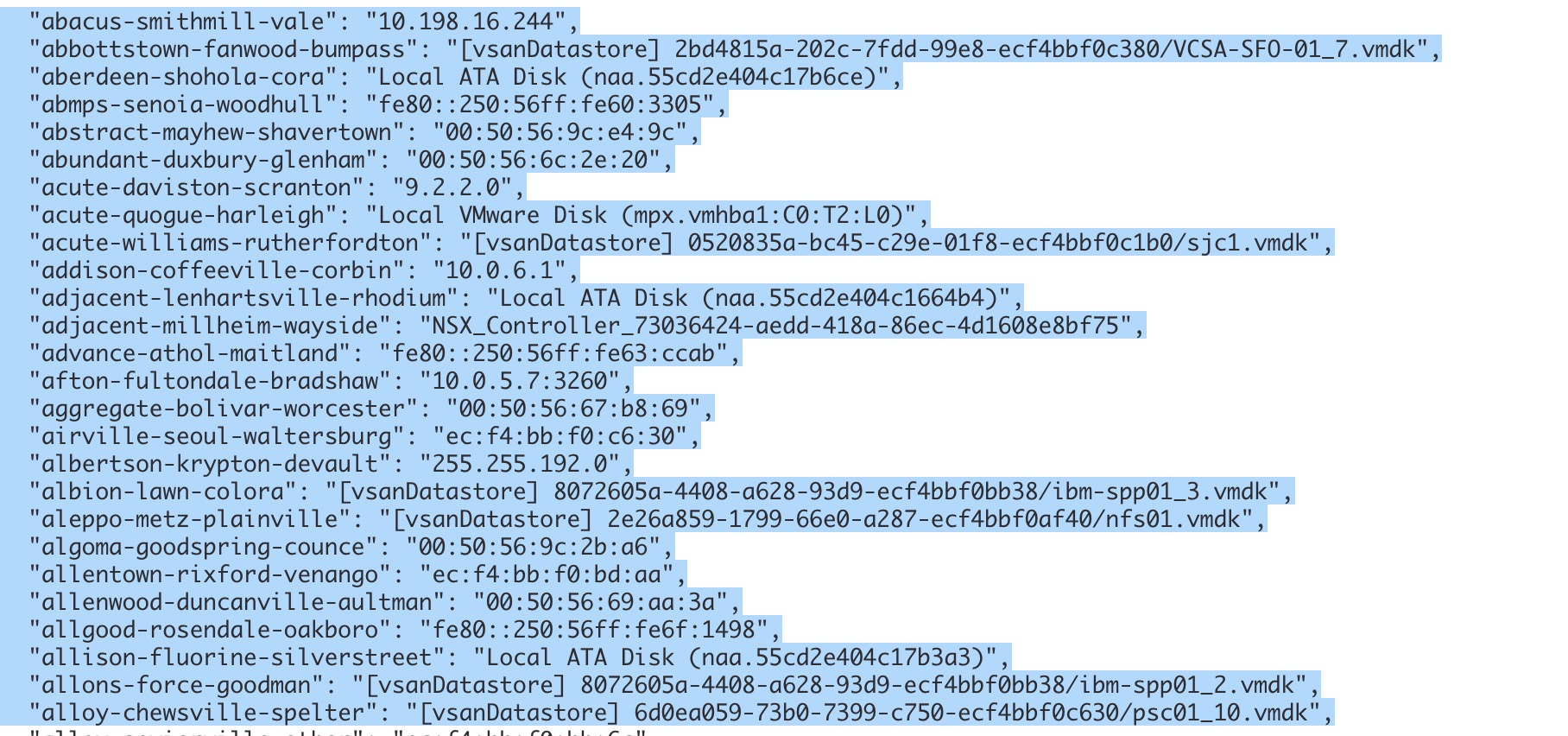
Today vSAN out of the box can phone home Performance, Configuration, and health telemetry to support and engineering using the vSAN Support Insight functionality. Note this phone home data builds an obfuscation map by default so that hostnames, virtual machine names, and network information are not exposed in the phone home. By using your vCenter UUID support and engineering can further drill into the environment and diagnose many common issues without necessarily needing a full manual log collection.

If you want to inspect a sample of what it looks like you can read through this JSON file here.

What happens when Support finds an issue and explains the secret code name for the Virtual Machine or host that is the problem? Where do you find a secret decoder ring to make sense of this?

In the vSphere Web Client, navigate to the vSAN Cluster > Configure > vSAN > Health and Performance > Online Health Check. Click on the Download Obfuscation Map

In the CLI on the VCSA?

  1. SSH into vCenter Server Appliance.
  2. Run command: cd /var/log/vmware/vsan-health/
  3. The obfuscation mapping file is <uuid>_obfuscationTableForHuman.json.gz.
  • Windows Environment:
    1. Login to Windows vCenter Server machine.
    2. Open C:\Program Files\VMware\vCenter Server\logs\vsan-health
    3. The obfuscation mapping file is <uuid>_obfuscationTableForHuman.json.gz.

What if you are not phoning home CEIP data? 

It’s time to turn it on. It’s less information than a normal log collection would include, and by having it phone home regularly you are in a better situation to get faster support should you need it. For setup and network requirements check out this storage hub section.

What happens if you do not have compliance needs to speak in code, and would rather VMware just have direct access to your Virtual machine and Hostnames? You can email, or upload and attach it to the ticket. Support can bind this in vSAN Support Insight, but it will expire in 7 days.


What is in the obfuscation map?

Here is a sample.map file.